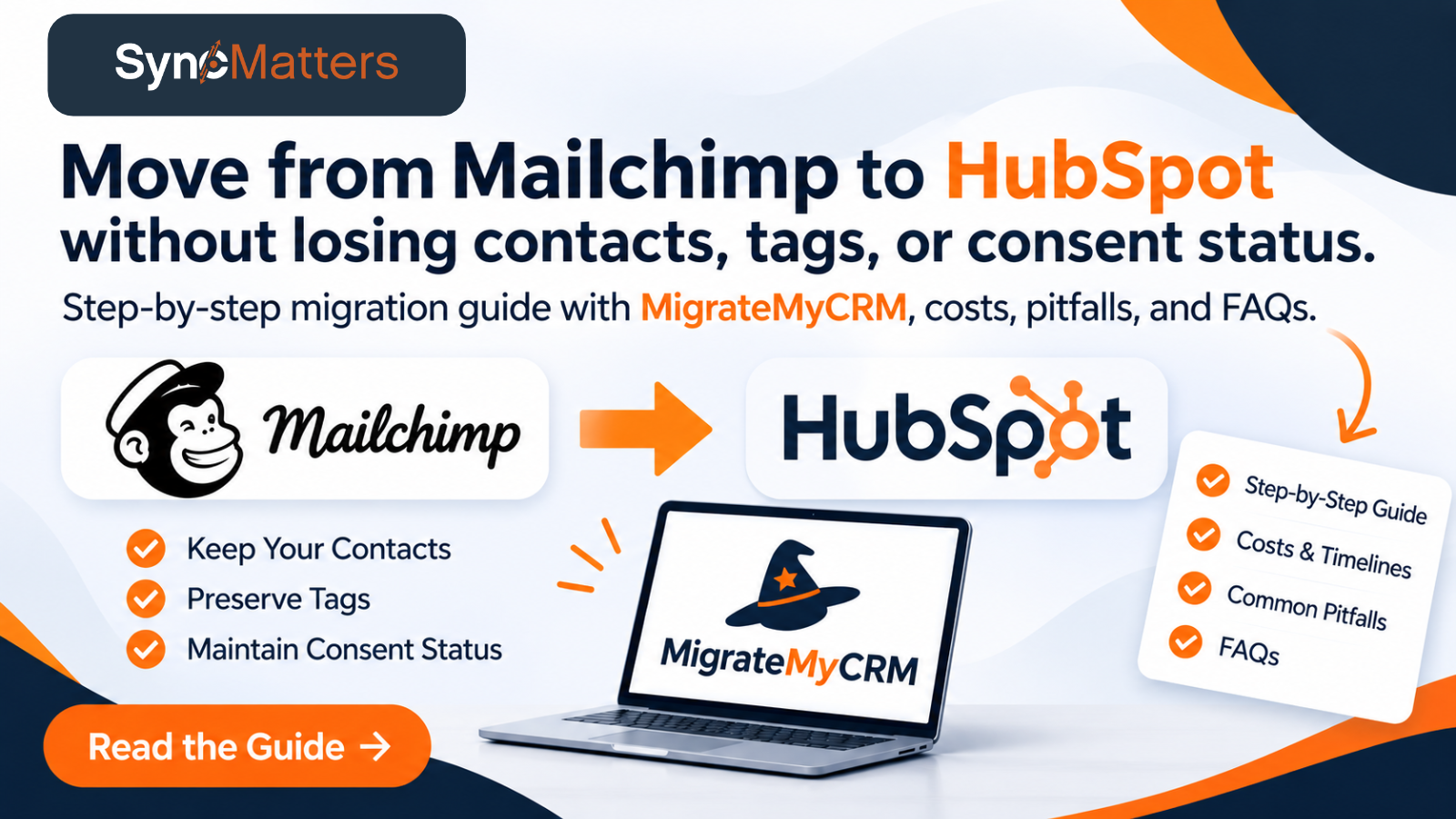
Most teams don't move from Mailchimp to HubSpot because Mailchimp stopped working. They move because they want their email, their contacts, and their sales process in one place. The catch is that email data is more fragile than it looks. A list of addresses is easy to export. The subscription status attached to each address, the tags that tell you who is a customer and who is a prospect, and the history of who opened what are harder to carry over correctly.
This guide walks through the full Mailchimp to HubSpot migration: what actually moves, what needs to be rebuilt, the mistakes that cause the most damage, and how to run the move step by step with MigrateMyCRM. If you only read one section, read the part on subscription status. It is where most migrations go wrong.
What Mailchimp to HubSpot migration actually involves
Mailchimp organizes contacts in audiences (sometimes called lists). Each contact has an email address, merge fields such as first name and company, tags, and a status. HubSpot organizes contacts as records with properties, lists, and lifecycle stages, and it has its own consent and marketing-status model. The two systems are not built the same way, so the migration is a translation, not a copy.
In practice, a Mailchimp move covers four layers:
- Contacts and their data: email addresses, names, company, custom merge fields, and addresses.
- Subscription status: whether each person is subscribed, unsubscribed, cleaned (bounced or invalid), or pending confirmation.
- Segmentation: audiences, tags, and saved segments, which need to become HubSpot properties or static and active lists.
- Campaigns and automation: templates, automations, and send history. Some of these transfer as content, some have to be rebuilt, and historical performance data usually needs to be exported separately for your records.
Layers one to three are the core of the migration. Layer four is where teams often underestimate the work, especially if they run automated journeys in Mailchimp.
Why a CSV export is not a migration
The fastest route is to export your audience to CSV and import it into HubSpot. That works for a small, simple list. It breaks down in three predictable ways.
First, the export tells you an address exists, but the status column is easy to misread or drop during import. If unsubscribed contacts come into HubSpot as marketable, you have a compliance problem and a deliverability problem at the same time. Second, tags and segments don't map automatically. A column called "tags" may arrive as a text property that nothing in HubSpot can filter on. Third, duplicates pile up. Mailchimp audiences often contain the same person across several lists, with different spellings of the same email, and a naive import creates the mess again inside a more expensive system.
There is also a cost question. HubSpot pricing is tied to the number of contacts in your portal. Importing every stale or unengaged address from Mailchimp can raise your bill without adding any value. A good migration is also a cleanup.
The subscription status rule: the one thing you cannot get wrong
Here is the principle to build the whole project around. A person who unsubscribed from Mailchimp must stay unsubscribed in HubSpot. A person who never opted in must not be marked as having opted in. A person whose address bounced must not be mailed again.
Before you import anything, map each Mailchimp status to the correct HubSpot marketing status and preserve the original opt-in source and date where you can. Treat unsubscribed and cleaned contacts as a separate import with explicit flags, not as regular contacts with a blank field. If you are unsure how consent was collected, ask before you import. Re-subscribing someone who opted out is the fastest way to damage a sender reputation that took years to build.
Step-by-step: migrating from Mailchimp to HubSpot with MigrateMyCRM
MigrateMyCRM handles the translation layer for you: it reads the source data, maps fields and statuses, removes duplicates, and lets you test before anything goes live. The steps below follow the typical workflow. Your exact screens may differ slightly depending on your plan and the version of the wizard you are using.
- Audit your Mailchimp account. List every audience, its size, its tags, its merge fields, and its active automations. Note which audiences are still in use. Many accounts have old audiences that can be retired instead of migrated.
- Decide what to keep. Choose the audiences and date ranges that matter. Engaged contacts from the last 12 to 18 months are a common starting point, but the right cut depends on your business. Document the decision so you can explain it later.
- Connect the source and the destination. In MigrateMyCRM, connect your Mailchimp account as the source and your HubSpot portal as the destination. Confirm that you have the permissions needed to create contacts, properties, and lists.
- Map fields and statuses. Map Mailchimp email, name, and merge fields to HubSpot contact properties. Map each subscription status to the matching HubSpot marketing status. Decide how tags will land: as a multi-select property, as list membership, or both.
- Clean the data. Run duplicate detection across audiences, normalize email addresses (lowercase, trimmed), and flag invalid or cleaned addresses so they are not marketed to.
- Run a test migration. Migrate a small sample, such as one audience or a few hundred contacts, into a sandbox or a test list. Check that statuses, tags, and names arrived as expected. Check at least one unsubscribed contact and one tagged contact by hand.
- Review the results. Compare record counts between source and destination, and check the exception report for rejected or skipped rows. Fix mapping issues and rerun the test before going further.
- Run the full migration. Once the test is clean, migrate the full set in batches. Keep the original Mailchimp data available as an archive until the move is verified.
- Rebuild what does not transfer. Recreate key automations as HubSpot workflows, rebuild your most-used templates in HubSpot's email editor, and set up sending domain authentication (SPF, DKIM, and DMARC) before your first campaign.
- Warm up and monitor. If you are sending to a large list from a new setup, ramp volume gradually and watch bounces, complaints, and opt-outs for the first few sends.
If you want a deeper look at how the tool approaches each stage, see the SyncMatters homepage or our MigrateMyCRM migration page, which shows the same test-first approach applied to a different source system.
What transfers and what you rebuild by hand
Contacts, names, company data, and custom fields transfer well when mapped correctly. Subscription status transfers if you map it deliberately. Tags and segments transfer as properties or lists, but the logic behind a complex segment usually has to be rebuilt as a HubSpot list with its own filters.
Templates are the most common surprise. HTML templates can be imported, but they often need cleanup: broken merge tags, old tracking links, and hard-coded images that point to Mailchimp's file host. Plan time to fix these. Automations almost always need to be rebuilt in HubSpot's workflow tool, because the trigger and action models differ. Send history and campaign performance should be exported to a spreadsheet or report, since HubSpot will not carry Mailchimp's reporting forward.
Build vs. buy: DIY, HubSpot's import tool, or a migration partner
You have three realistic options.
A DIY import works for a small list with simple tags and no automation. It costs only time, but you own every mistake, and the status logic is easy to get wrong.
HubSpot's own import tools handle the basics well. They are a good choice when your data is clean and your statuses are simple. The gap is usually in duplicate handling, mapping logic, and the testing you would want before a large send.
A migration tool such as MigrateMyCRM, or a partner that runs the project for you, makes sense when the list is large, the segmentation is complex, or you are moving several systems at once. The value is in the mapping, cleaning, and test cycle, not in the upload itself. Whichever route you pick, the test migration is the step not to skip.
Common Mailchimp to HubSpot mistakes
Most failed migrations trace back to a few avoidable errors. The first is importing unsubscribed contacts as marketable. The second is ignoring cleaned and bounced addresses, which hurts your sender reputation after the move. The third is migrating everything without a cut-off date, which inflates your contact count and your bill. The fourth is skipping authentication for your sending domain, so campaigns land in spam. The fifth is switching off Mailchimp before the new system has been tested end to end.
Run a checklist before cutover. Confirm that the record count matches your expectation after cleaning. Confirm that a sample of unsubscribed contacts is still unsubscribed. Confirm that your sending domain passes authentication. Confirm that your top three automations have been rebuilt and tested with a test contact.
Timeline and cost expectations
A straightforward move with one audience, a handful of tags, and no complex automation can be completed in a few weeks, including the test cycle. A larger account with several audiences, years of history, and multiple automations usually takes longer, and the rebuild of automations is often the longest part. Costs depend on contact volume, the amount of cleaning, and whether you do the work in-house or bring in help. Because HubSpot pricing scales with contacts, the cleanup step often pays for itself in the first billing cycle.
Frequently asked questions
Can I move my Mailchimp contacts to HubSpot without losing their unsubscribe status?
Yes, if you map the status field explicitly and import unsubscribed contacts as opted out. This is the single most important step in the whole migration. Test it with a sample before importing the full list, and check a few unsubscribed records by hand after the import.
Will my Mailchimp tags come over to HubSpot?
Tags can be moved, but they do not become HubSpot tags automatically in the way Mailchimp uses them. They usually land as a multi-select property or as list membership. Decide which approach fits how you plan to segment in HubSpot before you run the import.
Do I need to rebuild my Mailchimp automations?
In most cases, yes. Mailchimp journeys and automations use different triggers and actions than HubSpot workflows. Export your automation logic first, then rebuild the most important flows in HubSpot and test each one with a test contact.
Should I migrate all my Mailchimp contacts?
Usually not. Many lists contain inactive, invalid, or duplicate addresses. Migrating only engaged and relevant contacts keeps your HubSpot contact count and costs under control, and it protects your sender reputation. Keep the full Mailchimp archive available in case you need older records.
How long does a Mailchimp to HubSpot migration take?
A simple migration with one audience and no complex automation can be done in a few weeks, including testing. Larger accounts with many audiences and automations take longer. The timeline is driven mostly by cleanup and rebuild work, not by the data transfer itself.
Can I keep my email templates?
Often you can import them, but they usually need cleanup. Check merge tags, tracking links, and image paths, and plan to rebuild the templates you use most in HubSpot's editor.
Will my sending reputation survive the move?
It can, if you set up domain authentication before the first send, avoid mailing unsubscribed or invalid contacts, and ramp up volume gradually. Monitor bounces and complaints closely for the first few campaigns after the move.
Is MigrateMyCRM suitable for a Mailchimp move?
MigrateMyCRM is built for CRM and contact data migrations, with mapping, cleaning, and test runs as core steps. For a Mailchimp move, it handles the contact and status translation, and you still need to plan how you will rebuild automations and templates. If you want a second opinion on your setup, talk to the SyncMatters team.
Related guides from SyncMatters
If your move involves more than email, these guides cover adjacent migrations in more depth:
- Zoho to HubSpot Migration: The Complete 2026 Guide
- Marketo to HubSpot Migration: A Complete Guide
- Best AI Tool to Migrate to HubSpot in 2026
- How to Merge HubSpot Portals
The bottom line
A Mailchimp to HubSpot migration is simple in concept and easy to get wrong in practice. Protect subscription status above everything else, clean your data before it lands in a more expensive system, and test with a sample before you move the full list. Do those three things and the rest of the project is mostly careful rebuilding.