Switching from Marketo to HubSpot is one of the more consequential decisions a marketing operations team can make — and the migration itself is where most teams underestimate the work involved. Done carelessly, you risk orphaned records, broken compliance state, deliverability damage, and workflows that look fine in HubSpot but behave nothing like their Marketo equivalents.
This guide covers every phase of a Marketo to HubSpot data migration in the level of detail most resources skip: how to audit your Marketo instance before you touch anything, how to map fields across two genuinely different data models, what happens to your smart campaign logic, how to preserve unsubscribe and consent records so you stay CAN-SPAM and GDPR compliant, and how to run post-migration QA that actually catches problems before they reach customers.

A Marketo to HubSpot migration typically takes 8 to 16 weeks from audit to full cutover for a mid-size instance (100,000–500,000 contacts, 50–200 active programs). The core data move itself — contacts, companies, and custom objects — can be completed in days using an AI-assisted migration wizard. What actually consumes the 8–16 weeks is rebuilding your Marketo smart campaign logic as HubSpot workflows, preserving unsubscribe and consent records for compliance, and re-warming your sending domain's deliverability reputation from scratch.
Table of Contents
- Why Teams Switch from Marketo to HubSpot (and What to Expect)
- What Data and Assets Can — and Cannot — Migrate from Marketo to HubSpot
- Pre-Migration Audit: Data Hygiene, Deduplication, and Scope Definition
- Field Mapping and Data Model Differences Between Marketo and HubSpot
- Migrating Contacts, Companies, and Custom Objects
- Translating Marketo Programs and Smart Campaign Logic to HubSpot Workflows
- Preserving Compliance: Unsubscribes, Suppression Lists, and Consent Records
- Email Deliverability Setup: Domains, Sending Reputation, and SPF/DKIM/DMARC
- Post-Migration Validation: Reconciling Record Counts and Testing Workflow Behavior
- Migration Checklist and Timeline: DIY vs. Tool-Assisted vs. Managed Service
- Use Cases
- Frequently Asked Questions
Why Teams Switch from Marketo to HubSpot (and What to Expect)
“When migrating from Marketo to HubSpot, the contacts themselves are usually not the biggest challenge. What really matters is the engagement history behind those contacts — email opens and clicks, email sends, form submissions, and website activity. That historical engagement data can be extremely valuable for understanding a contact’s journey and maintaining marketing context, but it’s not something you can simply export from Marketo and import into HubSpot using native tools. That’s where a carefully planned migration becomes essential.”
— Lucy, Customer Success Manager, MigrateMyCRM
The most common reasons marketing ops teams move away from Marketo come down to three things: total cost of ownership, usability, and platform consolidation. Marketo is a powerful enterprise automation platform, but its licensing model and the specialist knowledge required to run it effectively make it expensive relative to what many mid-market teams actually use. HubSpot's CRM-native architecture means that marketing, sales, and service data live in one place without requiring heavy integration work to keep them aligned.
That said, the switch is not a simple lift-and-shift. Marketo and HubSpot have meaningfully different data models, automation paradigms, and email infrastructure requirements. Contacts in Marketo are not the same as contacts in HubSpot. Smart campaigns are not the same as workflows. Programs have no direct equivalent. Email sending reputation does not transfer automatically. Teams that treat this migration like a CSV export and import typically discover the gaps weeks after they've shut down Marketo — at which point fixing them is expensive and disruptive.
A realistic timeline for a mid-size instance (100,000 to 500,000 contacts, 50 to 200 active programs) runs eight to sixteen weeks from audit to full cutover, with the bulk of that time spent on field mapping, compliance record validation, and workflow translation rather than the data move itself.
What Data and Assets Can — and Cannot — Migrate from Marketo to HubSpot
Before scoping your migration, get clear on what is actually transferable, what requires manual reconstruction, and what is effectively lost.
What migrates cleanly with proper tooling:
- Lead and contact records with standard field values
- Company/account records and their associations to contacts
- Custom field values (once mapped to HubSpot equivalents)
- Email subscription status and unsubscribe records
- Static list memberships (exported as segments, imported as lists)
- Form submissions as historical data
- Notes and certain activity records (with caveats below)
What requires restructuring or translation:
- Smart campaigns and program logic — these must be rebuilt as HubSpot workflows, not imported
- Smart lists — dynamic filter logic must be recreated in HubSpot's active list syntax
- Email templates — HTML can be migrated, but template structure and token logic must be adapted
- Landing pages — content migrates but design and form embedding must be rebuilt
- Custom activities — Marketo's custom activity types have no direct HubSpot equivalent and must be mapped to custom events or notes
- Program member custom fields — these live on a Marketo-specific object and need to be restructured against HubSpot's association model
What does not migrate and cannot be replicated:
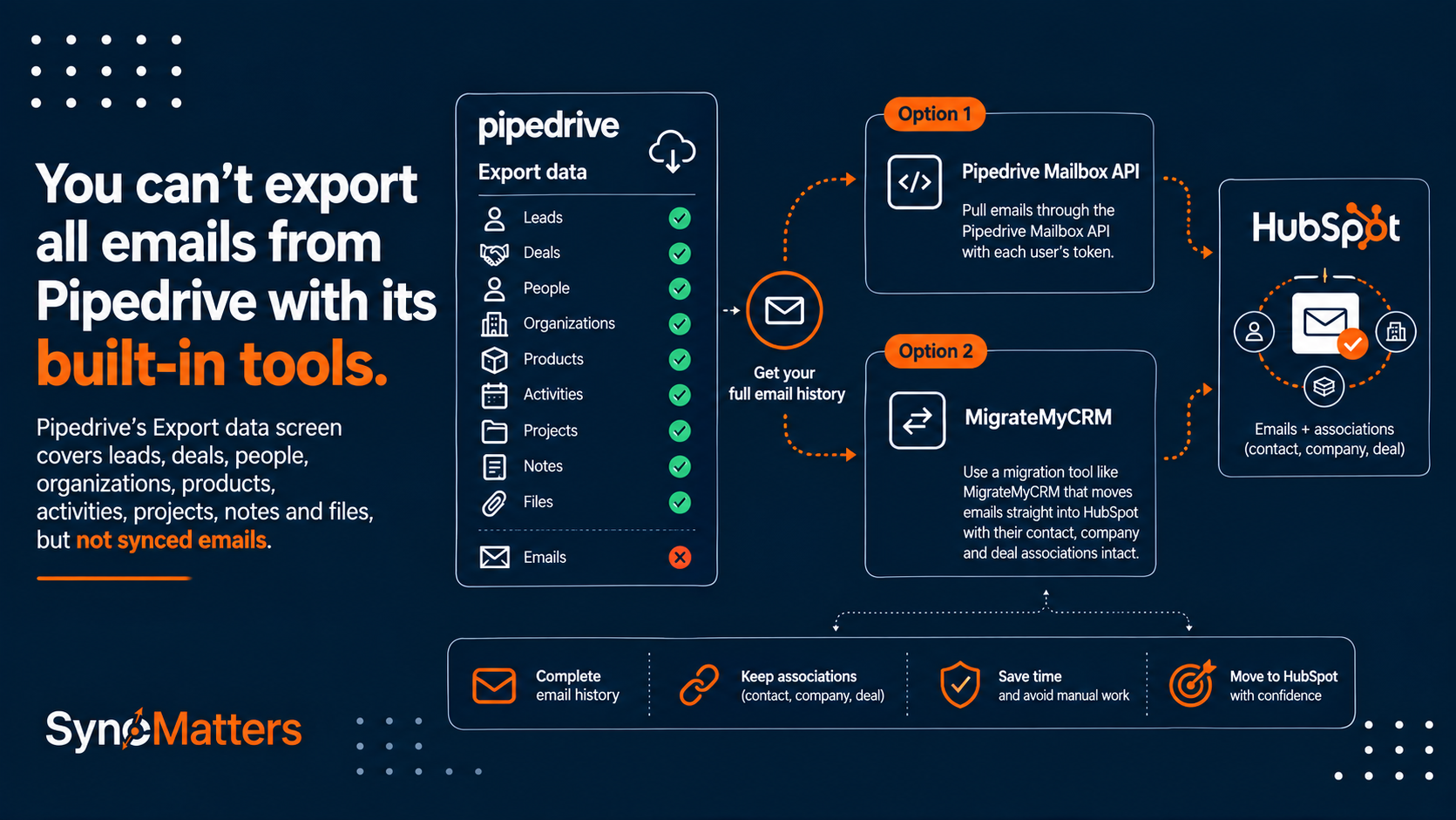
- Marketo's full behavioral/engagement history (email opens, clicks, web visits) in its native form — HubSpot cannot ingest and act on historical Marketo engagement data as behavioral triggers; it can be stored as notes or custom properties, but it will not populate HubSpot's native engagement timeline
- Revenue cycle model stages with historical transition data
- Marketo Sales Insight data tied to SFDC-side custom objects
Understanding these boundaries before you start prevents mid-migration scope creep and sets realistic expectations with stakeholders.
Pre-Migration Audit: Data Hygiene, Deduplication, and Scope Definition
The most important work in a Marketo to HubSpot migration happens before a single record moves. A pre-migration audit has three goals: know exactly what you have, remove what you shouldn't bring over, and define the boundary of what's in scope.
Record inventory. Pull a full export from Marketo and categorize records by status: known active leads, marketing suspended records, unsubscribes, bounced addresses, and anonymous leads with no meaningful field data. Most mature Marketo instances carry 20 to 40 percent of records that have no business being imported into a fresh HubSpot environment — they inflate your contact tier, dilute list quality, and can hurt deliverability.
Deduplication. Marketo's deduplication logic is email-based, but it's common to find duplicate records with variant email addresses (firstname@company.com vs. f.lastname@company.com for the same person), or records that were merged inconsistently over time. Run deduplication against your exported data before import, not after — merging in HubSpot retroactively is more complex than cleaning the source.
Field audit. Document every custom field in your Marketo instance and classify each one as: actively used in smart campaign filters or triggers, populated on more than 10 percent of records, or effectively abandoned. Custom fields with no meaningful data or usage don't need to be recreated in HubSpot.
Program and asset inventory. List every active program, note its type (email program, engagement program, event program, default program), and document its associated smart campaigns, triggers, and filter logic. This inventory becomes the input for your workflow translation work. This is precisely the kind of structural pre-work that MigrateMyCRM's migration process is built around — mapping source fields and record structures before the move rather than discovering mismatches afterward.
Field Mapping and Data Model Differences Between Marketo and HubSpot
Marketo and HubSpot use different underlying data models, and the differences matter more than most migration guides acknowledge.
In Marketo, the primary object is the lead/person. Company data lives on the lead record itself as fields — there is no separate, first-class company object unless you're using Marketo's Account-Based Marketing features. In HubSpot, contacts and companies are separate objects with a defined association between them. This means any company-level field data on your Marketo lead records needs to either be migrated to a HubSpot contact property (if it's person-level) or mapped to a HubSpot company record (if it's truly account-level), and company records need to be created and associated during the migration — not as an afterthought.
Standard field mappings that generally work directly:
- First Name → First Name
- Last Name → Last Name
- Email Address → Email
- Phone Number → Phone Number
- Company → Company Name (contact property) or associated Company record
- Job Title → Job Title
- Lead Score → HubSpot Score (requires score configuration post-migration)
- Unsubscribed → Email opt-out / Marketing contact status
Fields that need careful mapping decisions:
- Lead Source — Marketo's lead source values rarely match HubSpot's original source taxonomy; decide whether to preserve raw Marketo values in a custom property or normalize them to HubSpot's source categories
- Lead Status / Marketing Suspended — marketing suspended in Marketo has a direct functional analog in HubSpot (marking a contact as non-marketing), but it needs to be explicitly mapped, not assumed
- Program membership and progression status — there is no HubSpot equivalent; decision required on whether to store this as a custom contact property for historical reference
- Custom activity data — Marketo custom activities need to be mapped to HubSpot custom behavioral events or stored as engagement notes
Manual field mapping at scale — across potentially hundreds of custom fields — is one of the most error-prone parts of a DIY migration. MigrateMyCRM handles field mapping as a structured step in the migration process, letting you define the source-to-destination relationship for each field before any data moves, so you're not discovering mapping gaps from broken workflows post-cutover.
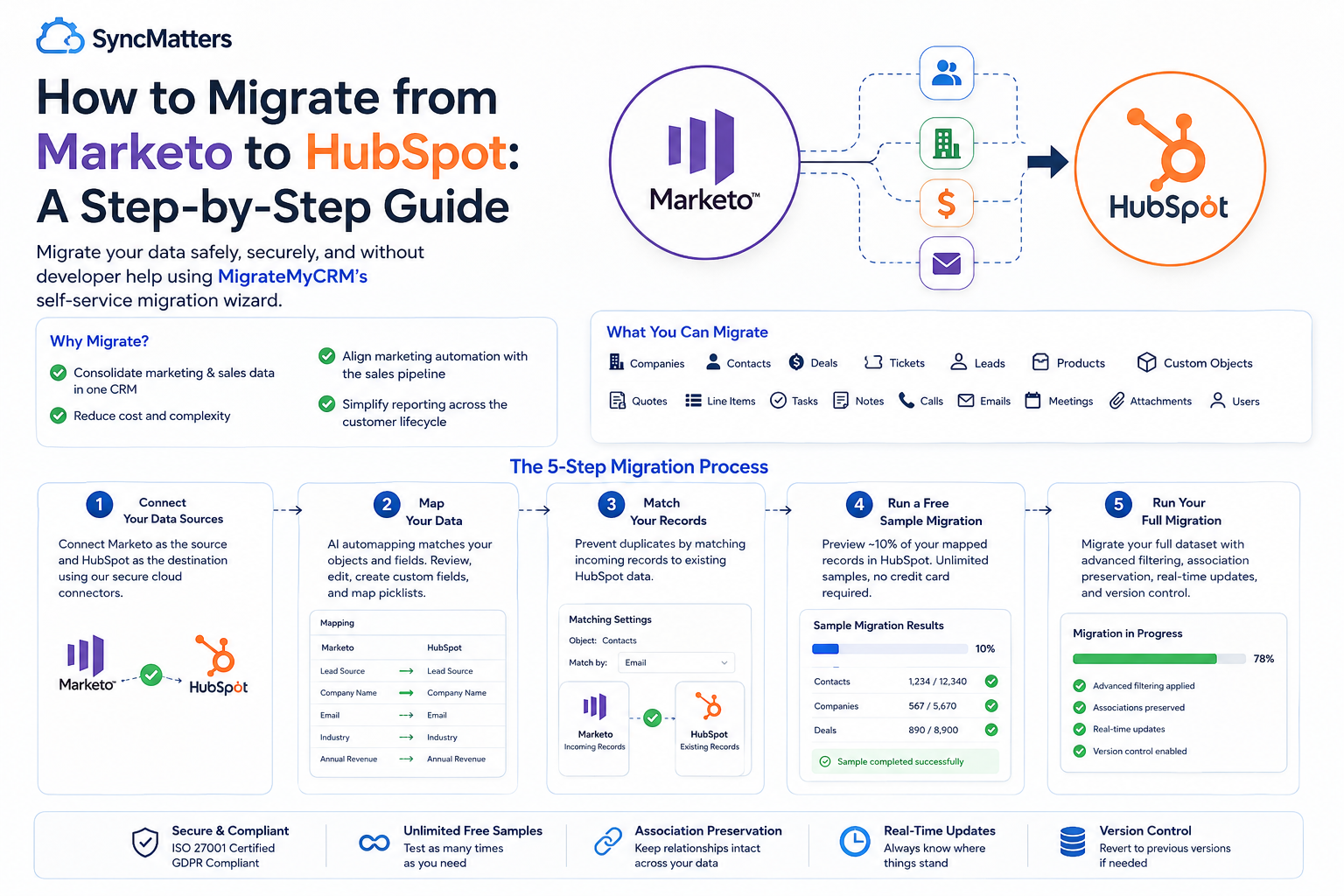
How to Migrate from Marketo to HubSpot: A Step-by-Step Guide
Switching your marketing automation platform is a big decision — and moving your data safely is often the part that causes the most anxiety. If you're planning a Marketo-to-HubSpot migration, the good news is that you don't need a developer team or weeks of manual exports to do it right.
Darren Trumeter, CEO of SyncMatters:
"The teams that get burned aren't the ones who lack technical skill — they're the ones who treat this like a data export instead of a platform rebuild. We've seen companies successfully move contacts and companies on their own, then discover six weeks later that half their smart campaign logic never made it over, or that their unsubscribe list didn't carry the same weight in HubSpot that it did in Marketo. That's not a data problem, it's a translation problem. It's the reason we built MigrateMyCRM around mapping and sample validation before anything touches a live portal — so you catch that gap on day two, not week six."
MigrateMyCRM's self-service migration wizard is built to make this process simple, secure, and fully in your control — no technical skills or credit card required to get started. Here's exactly how it works.
Why Migrate from Marketo to HubSpot?
Marketo is a powerful marketing automation platform, but many teams outgrow it — or find that HubSpot's all-in-one CRM, marketing, sales, and service hub better fits how they actually work. Common reasons teams make the switch include:
- Consolidating marketing and sales data into a single CRM
- Reducing the cost and complexity of maintaining separate systems
- Wanting native alignment between marketing automation and the sales pipeline
- Simplifying reporting across the full customer lifecycle
Whatever your reason, the success of the move comes down to one thing: getting your data across cleanly, completely, and without duplicates.
What You Can Migrate
MigrateMyCRM's HubSpot migration wizard automatically supports migration into HubSpot's core objects, including:
- Companies
- Contacts
- Deals
- Tickets
- Leads
- Quotes
- Products
- Line Items
- Tasks
- Notes
- Calls
- Emails
- Meetings
- Attachments
- Users
- Custom Objects
If you have additional or non-standard data structures in Marketo, MigrateMyCRM also supports custom migrations — as long as the data can be captured from the legacy system, it can be migrated.
If your move also involves marketing assets — landing pages, forms, emails, workflows, and more — that's handled separately through CMS/Asset Migration services, which we'll touch on at the end of this guide.
The 5-Step Migration Process
MigrateMyCRM's platform follows a simple, five-step process. Here's how each step works in the context of a Marketo-to-HubSpot migration.
Step 1: Connect Your Data Sources
Start by connecting Marketo as your source and HubSpot as your destination. MigrateMyCRM offers 25+ pre-built cloud connectors, so linking both platforms is a matter of authenticating each account — no manual data exports or CSV wrangling required (though CSV and Excel import is also supported if you need it).

How to do it:
- Sign up for a free MigrateMyCRM account (no credit card needed).
- Select Marketo as your source system.
- Select HubSpot as your destination.
- Authenticate both accounts through the secure connector flow.
Step 2: Map Your Data
This is where MigrateMyCRM's AI-powered automapping does the heavy lifting. The intelligent mapping engine automatically identifies data relationships between Marketo and HubSpot, matching objects and fields based on structure and naming.

What you can do at this stage:
- Review AI automapped fields — objects and fields are automatically matched between Marketo and HubSpot to reduce manual setup.
- Edit any mapping — change, add, or remove field mappings if the automapped defaults don't fit your needs.
- Create custom objects — map to existing custom objects in HubSpot, or create new ones directly through the interface.
- Bulk-create custom fields — if Marketo has custom fields that don't yet exist in HubSpot, create them in bulk right from the wizard UI.
- Check field utilization — see what percentage of your Marketo records actually have data in each field, so you can decide whether it's worth migrating.
- Review field details — see friendly labels, internal names, field types, and whether a field is custom or native, to make informed mapping decisions.
- Map picklists — align dropdown values between Marketo and HubSpot, including editing picklist options directly in the UI for supported fields.
- Use text-to-picklist mapping — if Marketo stores something as free text but HubSpot expects a dropdown, map those text values to the correct picklist options.
- Map users — align Marketo users with their HubSpot counterparts, with the option to create user accounts directly in HubSpot for supported setups.
If your Marketo schema changes mid-project, you can refresh the schema at any time to pull in the latest field structure before finalizing your mappings.
Step 3: Match Your Records (Prevent Duplicates)
If you already have contacts, companies, or deals in your HubSpot portal — common if you're consolidating from multiple tools — the matching feature prevents duplicate records from being created.
How it works:
- Choose which object mappings should be used for matching (versus migration, or both).
- Set your matching logic — for example, matching companies by domain, or contacts by email address.
- MigrateMyCRM checks incoming Marketo records against existing HubSpot records and updates matches instead of creating duplicates.
Step 4: Run a Free Sample Migration
Before committing to a full migration, run a free sample. This previews roughly 10% of your mapped records directly in HubSpot, so you can confirm everything looks right before touching your full dataset.

Why this step matters:
- It's unlimited — run as many samples as you need.
- No credit card is required.
- You can adjust your mappings, re-run the sample, and repeat until the data is exactly right.
- It's your chance to catch mapping errors, missing fields, or formatting issues before they affect your live HubSpot portal.
How to do it:
- Click to run a sample migration from the wizard.
- Review the sample records inside your actual HubSpot portal.
- Go back and adjust field mappings, filters, or matching logic as needed.
- Re-run the sample until you're confident in the results.
Step 5: Run Your Full Migration
Once your sample migration looks correct, you're ready to run the real thing.
What happens during the full migration:
- MigrateMyCRM handles the heavy lifting automatically.
- Advanced filtering applies any criteria you've set — for example, excluding old or inactive Marketo records from the migration.
- Association preservation keeps relationships intact between contacts, companies, deals, attachments, and activities, so your data structure carries over, not just the raw records.
- You get real-time updates throughout the migration, so you always know where things stand.
- Version control means that if something doesn't look right, you can revert to a previous version of your mappings rather than starting over.
Tips for a Clean Marketo-to-HubSpot Migration
- Use field utilization insights before you migrate. Not every field in Marketo is worth bringing over — check usage percentages first to avoid cluttering your new HubSpot portal.
- Set up matching logic early if you have existing HubSpot data. This is especially important if you're migrating multiple source systems into the same portal, or re-running a migration.
- Don't skip the sample migration. It's free and unlimited — there's no reason to run your full migration without validating the mapping first.
- Leave notes for your team. MigrateMyCRM's collaborative notes feature lets you leave comments directly in the mapping interface, which is useful if more than one person is working on the project.
- Plan for your marketing assets separately. Landing pages, forms, workflows, emails, and other CMS assets aren't part of the core CRM data migration — these are handled through a dedicated CMS/Asset Migration service that rebuilds these assets natively in HubSpot.
What About Marketing Assets Beyond CRM Data?
If your Marketo-to-HubSpot move also includes things like landing pages, forms, emails, workflows, campaigns, or your knowledge base, that's a separate track handled by CMS/Asset Migration services. Rather than a straight automated transfer, this involves rebuilding these assets natively in HubSpot — including:
- Website and landing pages
- Blog posts
- Forms and CTAs
- Marketing emails and campaigns
- Workflows and sequences
- Lists, reports, and templates
- Chatflows and social posts
- HubDB, files, and settings
This is a more hands-on service since these assets typically require rebuilding rather than a direct data transfer.
Ready to Start Your Migration?
Migrating from Marketo to HubSpot doesn't have to mean weeks of manual data entry or a risky one-shot import. With AI-powered automapping, unlimited free samples, and full control over your field mappings, you can validate your migration before it ever touches your live HubSpot portal.
Try a free sample migration today — no credit card or technical skills required.
Migrating Contacts, Companies, and Custom Objects
With your field map defined, the actual record migration follows a specific sequence: companies first, then contacts with associations, then deal or opportunity records if you're also migrating CRM data.
Company records. If your Marketo instance wasn't using company objects explicitly, you'll need to deduplicate company names from your lead export and create company records in HubSpot before importing contacts. Domain-based deduplication is HubSpot's native approach — if you have company domain data on your Marketo leads, use it.
Contact records. Import contacts with all mapped field values and establish company associations during the import, not after. HubSpot's import tool can associate contacts to companies by company name or domain during the same operation. Doing it afterward requires a secondary operation and creates a window where contacts exist without proper associations.
Custom objects. HubSpot supports custom objects, but the structure is different from Marketo's. Marketo's program member custom fields (fields that exist on the membership record, not the lead record) have no direct equivalent in HubSpot's standard data model. Options include: flattening the data to contact properties, creating a HubSpot custom object to hold program-level data, or storing it as historical reference data only. The right answer depends on whether the data needs to be used for active segmentation or is purely archival.
Historical engagement data. Email opens, clicks, form fills, and web visits from your Marketo history cannot be imported as native HubSpot engagement events that drive workflow triggers or scoring. What you can do is store a contact-level summary (last email engagement date, historical lead score, program history) as custom contact properties. These become queryable for list segmentation even if they don't populate HubSpot's activity timeline as live engagement records.
Translating Marketo Programs and Smart Campaign Logic to HubSpot Workflows
This is the section most migration guides skip or handle with "rebuild your automations in HubSpot." That's technically accurate but practically useless without a framework. Here's a structured approach.
Step 1: Classify your Marketo programs by type and complexity. Engagement programs (nurture tracks) map most cleanly to HubSpot enrollment-based workflows with email send actions. Email programs (batch sends) map to HubSpot's simple email sends or one-time workflows. Event programs require the most restructuring — Marketo's event program member status progression has no single HubSpot equivalent and typically becomes a combination of a list, a workflow, and a deal pipeline stage.
Step 2: Document trigger, filter, and flow step logic for each smart campaign. For each campaign, write out: what triggers enrollment (trigger vs. batch), what filters qualify a lead, and what the flow steps do in sequence. This is your translation spec.
Step 3: Map Marketo constructs to HubSpot equivalents. Some direct translations:
- Trigger: "Fills Out Form" → HubSpot: workflow trigger "Form submission"
- Trigger: "Email is Opened" → HubSpot: workflow trigger "Marketing email open" (note: Apple MPP makes open-based triggers unreliable in both platforms)
- Filter: "Member of List X" → HubSpot: "Is member of active list X"
- Flow step: "Change Data Value" → HubSpot workflow action: "Set contact property value"
- Flow step: "Send Alert" → HubSpot: "Send internal email notification" or "Create task"
- Flow step: "Interesting Moment" → HubSpot: "Create activity" or custom behavioral event
- Smart campaign qualification rules (once, every time, once per X days) → HubSpot re-enrollment settings
Step 4: Identify logic that has no clean equivalent and decide what to do with it. Marketo's wait steps with relative date tokens, advanced Velocity scripting in emails, and complex revenue cycle model rules often have no clean HubSpot analog. Document these explicitly and make a deliberate product decision rather than discovering them as broken automations post-launch.
Step 5: Build and test in HubSpot before cutover. Rebuild workflows in HubSpot while Marketo is still live. Use test contacts to validate enrollment logic and flow step behavior before you switch traffic.
Preserving Compliance: Unsubscribes, Suppression Lists, and Consent Records
This is the area where most migration guides — including most of the ones currently ranking for "Marketo to HubSpot migration" — say essentially nothing useful, and where mistakes carry real legal and deliverability consequences.
Global unsubscribes. In Marketo, global unsubscribes are stored on the lead record via the Unsubscribed field (boolean) and the Unsubscribed Reason field. These must be migrated and applied correctly in HubSpot. In HubSpot, opting a contact out of all marketing email means setting their "Email opt-out" property to true and, if you use the marketing contacts model, marking them as non-marketing. Both steps are required — setting one without the other can result in contacts appearing opted out in HubSpot's UI but still being technically eligible for certain email sends.
Suppression lists. Marketo suppression lists (lists used as blocklists in smart campaign filters) need to be recreated as HubSpot suppression lists or active lists used in workflow enrollment criteria. Don't rely on suppression being implied by unsubscribe status — some suppression lists in Marketo exist for reasons other than unsubscribe (competitors, internal addresses, non-sendable domains). Audit each suppression list for its business logic and recreate it explicitly.
GDPR consent records. If you operate under GDPR, Marketo may store consent records via custom fields, third-party consent management integrations, or Marketo's native GDPR-related fields. HubSpot has a built-in GDPR tools feature that stores communication subscription type and legal basis (consent, legitimate interest, etc.) per contact. Migrating consent records means mapping Marketo's consent state to HubSpot's legal basis fields — and doing it per-contact, not as a bulk default.
CAN-SPAM compliance. Ensure that any contact whose Marketo record was marked as "Marketing Suspended" or "Blacklisted" has an appropriate status applied in HubSpot before your first send. A clean migration means no suppressed contact receives email from HubSpot because the suppression state didn't transfer.
MigrateMyCRM treats unsubscribe and compliance field migration as a required part of the contact migration — not an optional add-on — precisely because sending to suppressed contacts post-migration is one of the most common and most damaging mistakes in a platform switch.
Email Deliverability Setup: Domains, Sending Reputation, and SPF/DKIM/DMARC
Your Marketo sending reputation does not follow you to HubSpot. This is not a flaw in either platform — it's how email infrastructure works. Your reputation is tied to the IP addresses you send from, and HubSpot's shared (or dedicated) IP infrastructure is separate from Marketo's. If you've built a strong sender reputation in Marketo over years of consistent sending, you are effectively starting over in HubSpot from a deliverability standpoint.
IP warming. If you're sending at volume (generally above 50,000 to 100,000 emails per month), you should plan for an IP warming period on HubSpot before full-volume sends. HubSpot's dedicated IP option gives you more control over this, but even on shared IPs, ramping volume gradually — starting with your most engaged segment and expanding from there — protects your sender reputation and inbox placement rate during the transition.
Sending domain authentication. You'll need to configure SPF, DKIM, and DMARC for your sending domain in HubSpot's DNS settings, regardless of whether you had these configured in Marketo. The records are platform-specific — Marketo's DKIM configuration does not carry over to HubSpot. Steps:
- Add your sending domain in HubSpot's Email Sending Domains settings
- Add the HubSpot-generated DKIM CNAME records to your DNS provider
- Verify the SPF record includes HubSpot's sending servers (HubSpot provides the exact include statement)
- Confirm your DMARC policy is set to at least "p=none" with a reporting address so you can monitor alignment
- Validate full authentication using a tool like MXToolbox or Google's email verification before sending to your full list
Subdomain vs. root domain sending. If you send marketing email from a subdomain (e.g., email.yourcompany.com) rather than your root domain, confirm that subdomain is set up in HubSpot and authenticated separately. Sending from an unauthenticated domain will immediately damage deliverability and may trigger spam filtering at scale.
Bounce and engagement history. HubSpot will not have your Marketo hard bounce history. To avoid resending to previously hard-bounced addresses, export hard-bounced contacts from Marketo and suppress them in HubSpot before your first send. This is a manual step but a critical one.
Post-Migration Validation: Reconciling Record Counts and Testing Workflow Behavior
The migration isn't done when the data is in HubSpot. It's done when you've confirmed the data in HubSpot matches what left Marketo, that suppression state is correct, and that workflows behave as intended. Most teams skip or rush this phase, which is where post-migration problems originate.
Record count reconciliation. At the most basic level, compare total contact counts between Marketo export and HubSpot import. If the numbers don't match, find out why before proceeding. Common causes: import errors (check HubSpot's import error log), duplicate merging during import, or records filtered out by import validation (invalid email format, missing required fields).
Field-level spot checks. Don't assume that because 95,000 of 100,000 records imported successfully, the field values are correct. Pull a sample of 50 to 100 records — including edge cases like unsubscribed contacts, contacts with null field values, and contacts from multiple Marketo programs — and manually compare field values between the Marketo record and the HubSpot record. Pay particular attention to: unsubscribe status, lead score, custom field values, and company association.
List behavior validation. For every active list in HubSpot that was rebuilt from a Marketo smart list, compare the expected membership count to the actual membership count. A rebuilt list with 40 percent fewer members than its Marketo equivalent usually signals a filter logic translation error. Test each filter criterion independently to identify which condition is wrong.
Workflow enrollment testing. Before enabling any HubSpot workflow rebuilt from a Marketo smart campaign, test it with internal contacts or a controlled test segment. Validate: enrollment trigger fires correctly, all flow steps execute in the right sequence, wait steps behave as expected, and the workflow does not re-enroll contacts it shouldn't.
Compliance state audit. Run a HubSpot report of all contacts marked as "Email opt-out: true" and cross-reference against your Marketo unsubscribe export. The counts should align. Do the same for suppression list memberships. Any gap represents a compliance risk that must be resolved before any email send.
Deliverability pre-send check. Send a test campaign to an internal seed list before your first external send. Check inbox placement across major email clients (Gmail, Outlook, Apple Mail) using a tool like Litmus or Email on Acid. Confirm that SPF and DKIM are passing and that your DMARC alignment is correct.
Frequently Asked Questions about Marketo to HubSpot Migration
1. How long does a Marketo-to-HubSpot migration take? It depends on your data volume and complexity, but because the process is self-service and sample-driven, most teams move at their own pace — often completing a full migration within days rather than weeks. There's no fixed project timeline imposed on you; you run the sample, adjust, and migrate when you're ready.
2. Will my Marketo custom fields carry over to HubSpot? Yes. Custom fields are automapped where possible, and any that don't yet exist in HubSpot can be created in bulk directly from the mapping interface — no need to build them manually in HubSpot first.
3. Can I migrate to an existing HubSpot portal that already has data in it? Yes. The matching feature is built for exactly this — it checks incoming Marketo records against existing HubSpot records (by criteria like email or domain) and updates matches instead of creating duplicate contacts or companies.
4. Do I need developer or technical support to run the migration? No. The wizard is designed for non-technical users to run self-service, with no credit card required to start. That said, HubSpot Migration Services are available if you'd rather have a team handle the project end-to-end.
5. What happens to associations between records, like which contacts belong to which company or deal? Associations are preserved during migration — contacts, companies, deals, attachments, and activities keep their existing relationships rather than migrating as disconnected records.
6. Can I preview my data before committing to the full migration? Yes. You can run unlimited free sample migrations, previewing roughly 10% of your mapped records directly in your HubSpot portal, and adjust mappings as many times as needed before running the full migration.
7. Does the migration only move CRM data, or also marketing assets like emails and landing pages? The core migration wizard moves CRM data — contacts, companies, deals, tasks, notes, and similar objects. Marketing assets such as landing pages, emails, workflows, and forms fall under a separate CMS/Asset Migration service, since those typically need to be rebuilt natively in HubSpot rather than transferred directly.
8. What if a Marketo field doesn't have an equivalent in HubSpot? You can create it. The wizard supports creating new custom fields in HubSpot directly from the mapping UI, including bulk creation for larger sets of custom fields.
9. Is it safe to migrate sensitive marketing and customer data this way? Yes — the platform is ISO certified and GDPR compliant, and used by organizations with strict data security requirements.
10. What if I make a mapping mistake — can I undo it? Yes. Version control lets you revert to a previous version of your mappings if a change doesn't work out, so you don't have to redo your mapping work from scratch.
Ready to Start Your Migration?
Migrating from Marketo to HubSpot doesn't have to mean weeks of manual data entry or a risky one-shot import. With AI-powered automapping, unlimited free samples, and full control over your field mappings, you can validate your migration before it ever touches your live HubSpot portal.
Try a free sample migration today — no credit card or technical skills required.



.svg)