Learn how to use the HubSpot and Salesforce integration to synchronize customer data, automate sales processes, and keep both platforms aligned with real-time information.
Overview
HubSpot is a leading customer relationship management (CRM) and growth platform that provides powerful tools for marketing, sales, customer service, content management, and operations. It enables businesses to generate leads, automate marketing campaigns, manage sales pipelines, and deliver personalized customer experiences - all from a single platform.
Salesforce is the world's leading enterprise CRM, helping organizations manage customer relationships, sales opportunities, service operations, and business processes at scale. With highly customizable objects, workflows, automation, and reporting capabilities, Salesforce supports businesses of all sizes across virtually every industry.
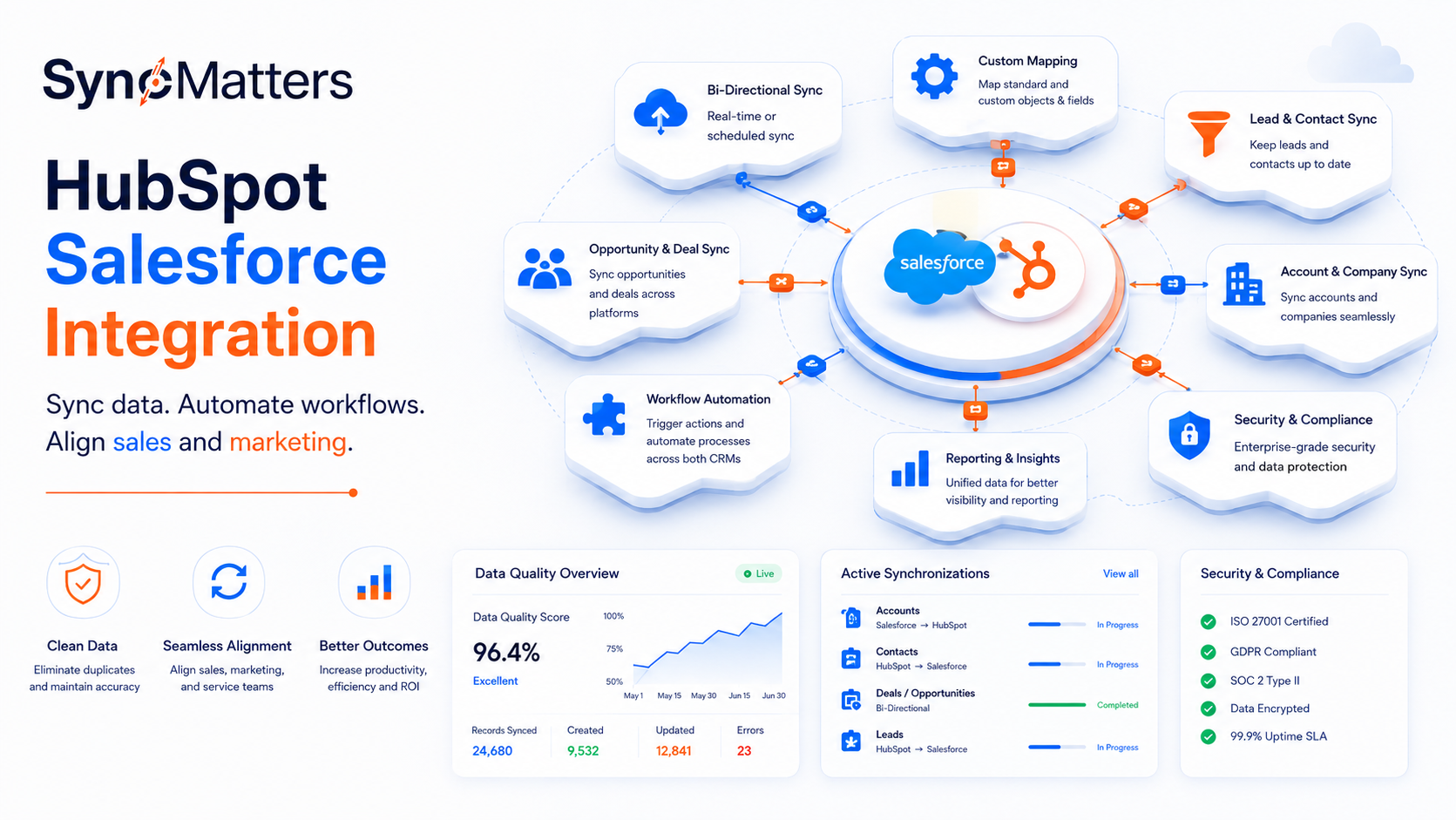
The HubSpot–Salesforce integration connects two of the most widely used CRM platforms, enabling organizations to synchronize customer data, automate processes, eliminate manual data entry, and maintain a single source of truth across marketing, sales, and customer success teams.
Whether you're synchronizing standard CRM objects or implementing complex custom business logic, SyncMatters provides a flexible integration solution tailored to your organization's needs.
Install:
Please note that since we offer a white-glove service, this guide provides a high-level overview. More details will be discussed during personalized communication as we configure the integration process for your business.
Our team will ensure a seamless setup tailored to your specific needs.
⚠️ We strongly suggest filling out the Contact Us form on this page: Salesforce and HubSpot Integration, and we will assist with everything.
General flow could look like the following steps: Account Creation.

So then connect the system/connector; go to “Connections” and click the Create Connection button in the top right corner.
.png?width=1881&height=942&name=image%20(29).png)
Configure
Our iPaaS platform supports fully customizable integrations designed around your business processes.
During implementation, our team works with you to configure:
- Object mappings (Accounts, Contacts, Companies, Leads, Opportunities, Deals, Cases, Products, etc.)
- Custom object synchronization
- Custom field mappings
- Data transformation rules
- Record matching logic
- Sync direction (one-way or bi-directional)
- Real-time or scheduled synchronization
- Duplicate prevention
- Business workflows
- Error handling and notifications
Every implementation is customized to your organization's requirements
Since we offer a white-glove setup, we take care of the rest of the configurations. Please contact us for the next steps.
Here are a few next steps on how we connect to HubSpot. In the Scopes section, we configure what our app can access.
Pick the HubSpot portal to connect to our app and click the Choose Account.
Use
Once configured, the integration automatically synchronizes data between HubSpot and Salesforce based on your selected business rules.
Typical synchronization scenarios include:
- Sync Contacts between HubSpot and Salesforce
- Sync Companies and Accounts
- Sync Deals and Opportunities
- Sync Leads
- Sync Products
- Sync Owners
- Sync Custom Objects
- Update lifecycle stages
- Keep marketing and sales data aligned
- Trigger downstream automations across both systems
Our team continuously monitors the implementation during onboarding and provides support whenever changes are needed.
Disconnect & Uninstall
To disconnect an app from your HubSpot account, follow these steps:
- In your HubSpot account, click the settings ⚙️ icon in the top navigation bar.
- In the left sidebar menu, navigate to Integrations > Connected Apps.
- Find the app you want to disconnect, click Actions, then select Uninstall.
- Type "uninstall" in the text field in the confirmation dialog box and click Uninstall.




.svg)