What is a HubSpot Microsoft Business Central integration?
A HubSpot Microsoft Business Central integration connects HubSpot (your CRM, marketing and sales platform) with Microsoft Dynamics 365 Business Central (your ERP). Customer, product, order and invoice data then flows automatically between the two systems. Sales sees what customers actually bought and paid, and finance gets clean orders without retyping deals.
Quick answer: there are four ways to connect HubSpot and Business Central.
- HubSpot's native Business Central app: free and quick to set up, but focused on syncing customer records.
- No-code automation tools (Zapier, n8n, Make): good for one-way triggers such as "deal won → create customer", but weak at two-way sync and error handling.
- A Business Central extension or packaged connector: installed inside BC, with deeper object coverage, but you configure and maintain it yourself.
- A managed iPaaS integration (like SyncMatters): two-way sync of standard and custom objects, designed, built and monitored by an integration team, from $300/month.
The right choice depends on how many objects you need to sync, whether the sync must run in both directions, and who will fix it when a record fails. The rest of this guide covers what data to sync, how the four options compare, and the Business Central quirks that break most integrations.
"When you build in-house, it often becomes a question of not if, but when you'll encounter scalability and maintenance issues." Darren Trumeter, SyncMatters
In this guide:
- HubSpot vs. Business Central: who owns what
- Why connect HubSpot and Business Central?
- Use cases by team and industry
- What data should sync (with field-level mapping)
- 4 ways to integrate, compared and explained
- 7 Business Central quirks that break integrations
- Implementation roadmap
- Data cleanup before the first sync
- API limits, sync frequency and performance
- Security, permissions and compliance
- Testing and go-live checklist
- Reports and dashboards to build
- Cost and total cost of ownership
- 10 common mistakes to avoid
- How SyncMatters delivers the integration
- Moving to HubSpot from another CRM while keeping BC
- How to choose the right integration
- Glossary and FAQ

HubSpot vs. Business Central: who owns what
HubSpot and Business Central don't compete; they cover opposite ends of the customer lifecycle. HubSpot runs everything before and around the sale. Business Central runs everything after the order: fulfillment, invoicing, payments and the books. The integration is the handoff between them.
|
Area |
HubSpot (CRM) |
Business Central (ERP) |
|---|---|---|
|
Core job |
Attract, convert and retain customers |
Run operations and finance |
|
Main records |
Contacts, companies, deals, tickets, quotes |
Customers, vendors, items, sales documents, ledger entries |
|
Main users |
Marketing, sales, customer service |
Finance, operations, warehouse, purchasing |
|
Source of truth for |
Leads, pipeline, engagement, marketing consent |
Products, prices, inventory, invoices, payments, credit |
|
Key outputs |
Campaigns, forecasts, sales activity |
Orders, shipments, invoices, financial statements |
Why not just use Dynamics 365 Sales?
Microsoft offers its own CRM, Dynamics 365 Sales, and Business Central can integrate with it by first connecting to Dataverse and then completing setup inside Business Central. Many mid-market companies still choose HubSpot as their CRM because marketing, sales and service share one platform, adoption by sales teams tends to be easier, and HubSpot's marketing automation is a core strength. The trade-off is that HubSpot and BC don't share a data platform, so you need a dedicated integration.
Why connect HubSpot and Business Central?
Without an integration, the same customer lives in two systems, and someone keeps them in sync by hand. Orders get retyped, prices drift, and sales calls customers without knowing they have an overdue invoice. Connecting the two systems gives each team the data it is missing.
|
Team |
Without integration |
With integration |
|---|---|---|
|
Sales |
Can't see order history, open invoices or credit status in HubSpot |
Order and invoice data on the contact and company record; quotes use real BC items and prices |
|
Finance / operations |
Re-enters won deals as sales orders; chases sales for missing billing details |
Won deals arrive in BC as customers and sales orders with the right data |
|
Marketing |
Segments on leads and form fills only |
Segments and nurtures by what customers actually bought, when, and how much |
|
Customer service |
Tickets lack purchase and shipping context |
Agents see purchases and account status next to the ticket |
|
Leadership |
Pipeline in HubSpot and revenue in BC never match |
One revenue picture from first touch to paid invoice |
Use cases: how companies use a HubSpot–Business Central integration
The most common use case is quote-to-cash: a deal moves through HubSpot, becomes an order in Business Central, and the invoice and payment status flow back to the CRM. Everything else builds on that loop.

Items and prices sync to HubSpot first, so every won deal becomes a BC order with real products; invoices and payments then flow back to the CRM.
Use cases by team
- Deal to order without retyping. When a deal reaches Closed Won, the integration creates or updates the BC customer and creates a sales order with the deal's line items.
- Accurate quotes. BC items, prices and units of measure sync to the HubSpot product library, so reps quote real SKUs at current prices.
- Revenue visibility for sales. Posted invoices, open balances and payment status appear on the HubSpot company record, so reps know who is overdue before they call.
- Purchase-based marketing. Order history lets marketing build lists such as "bought product A but not B" or "no order in 180 days" for cross-sell and win-back campaigns.
- Service with context. Support agents see what a customer bought and when it shipped next to each ticket.
- Credit control. Sales sees credit limits or blocked status before promising a new order.
Use cases by industry
|
Industry |
Typical flows |
What matters most |
|---|---|---|
|
Manufacturing |
Deals → sales orders; items and configurable products → HubSpot |
Item numbers, units of measure, lead times |
|
Wholesale and distribution |
Price lists and customer-specific pricing → HubSpot; reorder signals → marketing |
Pricing accuracy, high order volume |
|
Professional services |
Deals → customers and projects; invoices → HubSpot |
Billing milestones, payment status |
|
SaaS and subscriptions |
Closed deals → customers and recurring invoices |
Renewal dates, invoice status |
|
Construction and field service |
Tickets ↔ service orders; purchase history → service |
Asset and service history |

What data should sync between HubSpot and Business Central?
Most integrations sync six to eight object pairs. The rule of thumb: HubSpot owns relationships and pipeline, and Business Central owns products, prices and money. Decide for each pair which system is the source of truth before anyone maps a field.
|
HubSpot object |
Business Central object |
Typical direction |
Notes |
|---|---|---|---|
|
Companies |
Customers |
Two-way |
Create the BC customer when a deal hits a set stage, not for every lead |
|
Contacts |
Contacts (person type, linked to a company contact) |
Two-way |
BC links people to customers through company contacts, not directly |
|
Products |
Items |
BC → HubSpot |
Keeps SKUs and unit prices in HubSpot quotes accurate |
|
Deals |
Sales quotes or sales orders |
HubSpot → BC |
Pick the trigger stage, e.g. Closed Won creates a sales order |
|
Line items |
Sales lines |
HubSpot → BC |
Must reference BC item numbers |
|
Quotes |
Sales quotes |
Either, choose one |
Two-way quote sync causes conflicts; pick one system to own quotes |
|
Invoices and payments (custom object or timeline) |
Posted sales invoices, payments |
BC → HubSpot |
Posted documents are read-only in BC, so this flow is one-way |
|
Custom properties |
Custom fields / table extensions |
Per field |
Map only fields a team will actually use |
Start with companies, contacts and products, prove they stay clean for two weeks, then add deals and invoices. Syncing everything on day one makes the first duplicate impossible to trace.
Field-level mapping example
Object mapping tells you what syncs; field mapping decides whether it syncs cleanly. Below is a typical starting point. Your BC setup, custom fields and required posting data will change it.
HubSpot Company ↔ BC Customer
|
HubSpot property |
BC field |
Direction |
Note |
|---|---|---|---|
|
Company name |
Name |
Two-way |
|
|
BC customer number (custom property) |
No. |
BC → HubSpot |
The matching key; never edit in HubSpot |
|
Street address, city, postal code, country |
Address, City, Post Code, Country/Region Code |
Two-way |
Country codes must match BC's list |
|
Phone number |
Phone No. |
Two-way |
|
|
Domain / website |
Home Page |
HubSpot → BC |
Useful secondary match key |
|
VAT / tax ID (custom property) |
VAT Registration No. |
Two-way |
|
|
Payment terms (custom property) |
Payment Terms Code |
BC → HubSpot |
Owned by finance |
|
Credit limit, balance, overdue amount |
Credit Limit (LCY), Balance (LCY), Balance Due (LCY) |
BC → HubSpot |
Read-only in HubSpot |
|
Blocked status |
Blocked |
BC → HubSpot |
Warn reps before new orders |
|
Company owner |
Salesperson Code |
Two-way |
Needs an owner ↔ salesperson lookup table |
HubSpot Contact ↔ BC Contact (person)
|
HubSpot property |
BC field |
Direction |
|---|---|---|
|
First name, last name |
First Name, Surname |
Two-way |
|
|
|
Two-way |
|
Phone, mobile |
Phone No., Mobile Phone No. |
Two-way |
|
Job title |
Job Title |
Two-way |
|
Associated company |
Company No. (linked company contact) |
HubSpot → BC |
HubSpot Deal → BC Sales Order
|
HubSpot property |
BC field |
Note |
|---|---|---|
|
Associated company |
Sell-to Customer No. |
Customer must exist first |
|
Deal name or PO number |
External Document No. |
Lets finance search by the customer's reference |
|
Close date |
Order Date |
|
|
Line items (SKU, quantity, price, discount) |
Sales lines (Item No., Quantity, Unit Price, Line Discount %) |
SKU must equal the BC Item No. |
|
Deal currency |
Currency Code |
Blank in BC means local currency |
|
BC order number (custom property) |
No. |
Written back so reps can reference the order |
4 ways to integrate HubSpot with Business Central, compared
|
Native HubSpot app |
Zapier / n8n / Make |
BC extension or packaged connector |
Managed iPaaS (SyncMatters) |
|
|---|---|---|---|---|
|
Best for |
Basic customer sync |
Simple one-way triggers |
Teams with a BC partner or in-house admin |
Multi-object, two-way sync without in-house integration staff |
|
Objects covered |
Mainly customers / contacts |
Whatever triggers and actions exist |
Usually customers, items, orders, invoices |
Standard and custom objects, scoped to your process |
|
Two-way sync |
Yes, for supported objects |
Workarounds only (two zaps, loop risk) |
Yes |
Yes, with source-of-truth rules per field |
|
Custom fields and logic |
Limited mapping |
Per-zap, hard to maintain |
Configurable within the product's model |
Built to your business rules |
|
Error handling |
Basic sync errors |
Per-task failures, often silent |
Logs inside BC |
Monitored by an integration team; errors fixed for you |
|
Who maintains it |
You |
You |
You or your BC partner |
SyncMatters |
|
Cost |
Included |
Per-task pricing that grows with volume |
License plus setup |
From $300/month |
The native app is the default starting point, and it is worth checking the HubSpot Marketplace listing and its reviews before you rely on it; at the time of writing it shows a 1.5 rating from 10 reviews. No-code tools work for alerts and one-way pushes, but two-way sync between a CRM and an ERP needs conflict rules they don't have. Extensions go deep but leave mapping, upgrades and failures with your team. A managed iPaaS makes sense when the integration is business-critical and nobody in-house owns it full-time.
Option 1 in depth: HubSpot's native Business Central app
HubSpot's own app, built on its Data Sync engine, is the fastest way to get customer records flowing. It works with all HubSpot plans and requires a Business Central Essentials, Premium or Team Members subscription.
What it does: two-way sync of customer data, default field mappings out of the box, and a historical sync that brings existing records across on day one, then syncs updates as they happen (AppSource listing).
How setup works, at a high level:
- In Business Central, upload HubSpot's extension (.app file).
- In BC Web Services, publish the page the app needs (object type: Page) so HubSpot can read and write it.
- In HubSpot, install the Microsoft Business Central app from the App Marketplace and authorize your BC environment.
- Review the default field mappings, add custom mappings, and choose sync direction per field.
- Turn on the sync and watch the first historical run for errors.
Follow HubSpot's knowledge base for the exact screens; the steps above show the shape of the work.
Where it falls short:
- It is built around customers and contacts. Items, sales orders, invoices and payments are outside its core scope.
- There is no deal → sales order automation, so finance still re-enters won deals.
- Logic is limited to field mapping: no conditional rules such as "create the BC customer only at Closed Won".
- Some fields aren't imported from Business Central, so check the mapping list against your requirements.
- User reviews on the marketplace are low (1.5 from 10 reviews at the time of writing), so test with a sandbox first.
Choose it when you only need a shared customer list and your team can handle occasional sync errors itself.
Option 2 in depth: Zapier, n8n and Make
No-code automation tools connect HubSpot and Business Central through triggers and actions. They shine for small, one-way automations and struggle once you need a true sync.
Recipes that work well:
- Deal moves to Closed Won → create a BC customer
- New BC customer → create or update a HubSpot company
- BC sales order updated → post a note or task on the HubSpot deal
- New HubSpot form submission from an existing customer → notify the account owner
Where they break:
- Two-way sync needs two separate flows, and each can trigger the other, creating update loops unless you add guard logic.
- No shared matching key. Each flow has to look up records itself, which is where duplicates come from.
- Line items are hard. Deals with many products require loops or code steps.
- Business Central setup isn't always no-code. With n8n, for example, BC is reached through a generic HTTP Request node that you authenticate yourself (n8n).
- Failures are per task. A failed run is logged in the tool, but nobody owns the fix unless you set up alerts.
- Costs scale with volume, because pricing is usually per task or per operation.
Choose it when you need a few event-driven automations and someone on your team is comfortable maintaining them.
Option 3 in depth: Business Central extensions and packaged connectors
Packaged connectors are products built specifically for HubSpot and Business Central. Some install as an AL extension inside your BC tenant, and others run as a HubSpot app with a setup wizard. They typically cover customers, contacts, items, quotes, orders, invoices and credit memos, and some write posted invoices and payments back to the HubSpot timeline.
They go much deeper than the native app, but you still own the configuration, the BC upgrade testing and the error queue. If your BC partner installed it, their support hours become part of the cost.
Questions to ask any connector vendor:
- Which objects sync, and in which direction, out of the box?
- Can I map custom fields and custom objects on both sides?
- How are duplicates matched, and what is the matching key?
- Is sync real-time, scheduled, or both? How are BC API limits handled?
- Does it support multiple BC companies and BC on-premises?
- What happens when a record fails: who is notified, and who fixes it?
- How quickly is the connector updated after each BC major release?
- What does onboarding include, and what is billed as extra services?
Choose it when your needs match the connector's standard model and you have a BC admin or partner to run it.
Option 4 in depth: managed iPaaS
An iPaaS (integration platform as a service) is middleware that sits between HubSpot and Business Central. It reads changes from both systems through their APIs, applies your mapping and business rules, and writes to the other side. In a managed model, the provider's engineers also design, build and monitor the integration.

Neither HubSpot nor Business Central needs custom code: the middle layer holds the rules, the record IDs and the error queue.
What makes it different:
- Business rules live in one place: which system wins per field, when a BC customer is created, and how deals map to quotes or orders.
- A matching layer stores the HubSpot and BC IDs for every pair of records, which prevents duplicates and loops.
- Error handling is someone's job. Failed records are queued, retried and fixed by the integration team.
- No code inside BC is required in most cases, because the integration uses BC's standard APIs. This keeps BC upgrades simpler.
- It scales across systems. The same platform can connect HubSpot to other tools in your stack later.
Choose it when the integration touches orders, billing or commissions, you need custom logic, and nobody in-house owns integrations full-time.
7 Business Central quirks that break HubSpot integrations
Most failed integrations don't fail on the API connection. They fail because CRM and ERP data models disagree. Plan for these before go-live.
- Customers vs. contacts. HubSpot treats contacts and companies as peers. BC centers on the customer, and people attach to it through a company contact. Map this wrong and you get orphan contacts or duplicate customers.
- Duplicates on day one. Both systems usually already hold the same customers under slightly different names. Deduplicate and set a matching key (e.g. domain, VAT ID or BC customer number stored in HubSpot) before the first sync.
- Posted documents are read-only. Posted invoices and credit memos can't be edited in BC. Invoice data should flow only from BC to HubSpot.
- Multiple companies in one BC environment. Each BC company is a separate data set. Decide which HubSpot business unit or pipeline maps to which BC company.
- Dimensions, currencies and posting groups. BC requires fields HubSpot doesn't have, such as customer posting groups, payment terms and dimensions. The integration must fill them with defaults or rules, or orders will fail to post.
- Items and pricing. Price lists, discounts and units of measure live in BC. Let BC push items to HubSpot and block reps from inventing products in quotes.
- API limits and upgrades. BC online throttles API calls and changes with each major update. Batch high-volume syncs and retest after BC upgrades.
If your team doesn't want to own these rules, that's the strongest argument for a managed integration.
Implementation roadmap: from kickoff to go-live
A full HubSpot–Business Central integration usually runs in six phases. Durations below are typical for a mid-size scope (customers, contacts, items, deals to orders, invoices back); simple customer-only syncs move much faster.
|
Phase |
What happens |
Owners |
Typical duration |
|---|---|---|---|
|
1. Discovery |
Map the quote-to-cash process, list objects and fields, agree source of truth per field |
RevOps, finance, integration lead |
1 week |
|
2. Data cleanup |
Deduplicate both systems, standardize countries, currencies and owners, set matching keys |
RevOps, finance |
1–2 weeks (in parallel) |
|
3. Design |
Write the mapping spec, trigger rules, defaults for BC-required fields, error routing |
Integration team, sign-off by finance |
1 week |
|
4. Build and configure |
Set up connections, mappings, rules and custom properties in a BC sandbox |
Integration team |
1–3 weeks |
|
5. Testing and UAT |
Run test scenarios, then user acceptance testing with sales and finance |
Integration team, key users |
1–2 weeks |
|
6. Go-live and hypercare |
Historical sync, switch on live sync, monitor closely for 2–4 weeks |
Integration team, admins |
2–4 weeks |
The two phases teams most often underestimate are data cleanup and UAT. Both depend on people outside the project team, so book their time at kickoff.
Data cleanup before the first sync
An integration copies whatever is in both systems, including the mess. Cleaning first is the cheapest step in the whole project.
- Deduplicate HubSpot companies and contacts. Merge by domain and email first.
- Deduplicate BC customers and contacts. Check for the same customer created under several numbers.
- Match existing records across systems. Decide which HubSpot company equals which BC customer, and store the BC customer number in HubSpot before the first sync.
- Standardize reference data. Country codes, currencies, payment terms and salesperson codes must use the values BC expects.
- Align products. Every HubSpot product used in deals needs a matching BC item number, or should be archived.
- Decide what to leave behind. Old leads with no orders usually don't need a BC customer record.
- Clarify ownership. Map each HubSpot owner to a BC salesperson code.
- Back up both systems before the historical sync.
For large or messy databases, run a duplicate audit before integration design, not after the first sync has spread the duplicates to both systems.
API limits, sync frequency and performance
Business Central online limits web service traffic per user. Any integration has to work within these limits, especially during the first historical sync.
|
Business Central online limit |
Value |
|---|---|
|
Request rate |
6,000 requests per 5-minute sliding window, per user |
|
Concurrency |
5 requests processed at once, plus 95 queued, per user |
|
When exceeded |
HTTP 429 "Too Many Requests" |
Source: Microsoft Learn, Business Central service scalability and operational limits. Microsoft raised these from an older per-environment limit of 600 requests per minute (release notes).
What this means in practice:
- Use a dedicated integration user so sync traffic doesn't compete with people working in BC.
- Prefer change-based sync over polling. BC APIs support webhooks, so the integration can react to changes instead of re-reading everything every few minutes.
- Batch the historical load. Moving tens of thousands of records at once needs batching, retries and back-off when a 429 comes back.
- Pick sync frequency per object. Deals → orders and customer changes benefit from near real-time sync. Invoices and payments can usually sync every 15 to 60 minutes. Item and price updates can often run a few times a day.
- Plan for BC upgrades. Business Central ships two major releases a year, so retest the integration after each one.
Security, permissions and compliance
The integration will read and write customer and financial data, so treat it like any other privileged user.
- Use OAuth, not shared passwords. Business Central online connects through a Microsoft Entra ID app registration, and HubSpot through an app or private app token.
- Grant least privilege. Give the integration user only the BC permission sets and HubSpot scopes it needs, for example no access to payroll or general ledger setup.
- Keep financial data read-only in HubSpot. Balances, credit limits and invoices should flow from BC only, and HubSpot users shouldn't be able to edit them.
- Limit who sees financial fields. Use HubSpot field-level permissions or teams so not every user sees credit data.
- Respect consent and data subject requests. A deletion request handled in HubSpot may also need action in BC, so document the process across both systems.
- Log changes. Make sure every write by the integration can be traced to the integration user.
- Check your vendor. Ask for security certifications, data residency, and whether data is stored in transit. SyncMatters is ISO 27001 certified.
Testing and go-live checklist
Test in a Business Central sandbox and a HubSpot test or sandbox account before touching production.
Test scenarios:
- New company in HubSpot reaches the trigger stage → one BC customer is created, with all required fields filled
- Existing BC customer is matched, not duplicated
- Contact added to a synced company → linked correctly to the BC customer
- Closed Won deal with several line items → sales order with correct items, quantities, prices and discounts
- Deal in a foreign currency → correct currency code in BC
- Field edited in both systems at once → the agreed system wins
- Posted invoice and payment in BC → visible on the HubSpot record
- Blocked or credit-limit customer → flagged in HubSpot
- Product with no BC item → order fails with a clear error, not silently
- Deleted or merged records → handled as designed
Go-live:
- Freeze large imports and bulk edits in both systems during the historical sync
- Run the historical sync and reconcile record counts
- Switch on live sync and spot-check the first 20–50 deals
- Confirm who receives error alerts and how fast they respond
- Brief sales and finance on what now happens automatically, and what they must stop doing manually
Reports and dashboards to build once data is connected
The payoff of the integration is reporting that neither system can produce alone.
|
Report |
Question it answers |
Data needed |
|---|---|---|
|
Closed-loop revenue attribution |
Which campaigns and channels produce invoiced revenue, not just won deals? |
HubSpot source data + BC invoices |
|
Booked vs. invoiced vs. paid |
How much won revenue has actually been billed and collected? |
Deals + sales orders + invoices + payments |
|
Customer lifetime value by segment |
Which industries, sizes or sources are most valuable over time? |
Company properties + invoice history |
|
Repeat purchase and churn risk |
Which customers haven't ordered in their usual cycle? |
Order dates per customer |
|
Rep performance on collected revenue |
Who closes deals that actually pay, and on time? |
Deal owner + payment status |
|
Cross-sell opportunities |
Who buys product A but never product B? |
Line items or invoice lines per customer |
|
Overdue accounts with open deals |
Where is sales pushing new deals to customers with unpaid invoices? |
Open deals + balance due |
Cost and total cost of ownership
The license or subscription is rarely the biggest cost. The bigger costs are setup time, cleanup after sync errors, and the hours someone spends maintaining the integration every month.
|
Cost element |
Native app |
Zapier / n8n / Make |
Extension / connector |
Managed iPaaS (SyncMatters) |
|---|---|---|---|---|
|
Software |
Included |
Per task or operation; grows with volume |
License, often per year or per company |
From $300/month (Standard) to $700/month (Enterprise) |
|
Setup |
Your admin's time |
Your builder's time per flow |
Onboarding or BC partner hours |
Scoped per project (free estimate) |
|
Ongoing maintenance |
Your team |
Your team |
Your team or BC partner |
Included: monitoring, fixes, updates |
|
Hidden costs |
Manual order entry continues |
Duplicate cleanup, broken flows |
Upgrade testing, partner support hours |
Out-of-scope changes are scoped separately |
A quick way to estimate your cost of not integrating: count the won deals finance re-enters each month, multiply by the minutes per order, and add the time spent fixing mismatched customer records. For most teams processing more than a few dozen orders a month, that figure exceeds the subscription cost of a managed integration.
10 common mistakes to avoid
- Syncing every lead to BC. Create BC customers at a defined deal stage, not for every form fill.
- No single source of truth per field. Two-way sync on every field guarantees overwrites.
- Skipping cleanup. The integration spreads duplicates to both systems within hours.
- No matching key. Without a stored BC customer number, records get matched by name and duplicated.
- Letting reps create products in HubSpot. Quotes with SKUs that don't exist in BC fail to become orders.
- Ignoring BC-required fields. Posting groups, payment terms and dimensions need defaults, or orders won't post.
- Using your admin's personal BC login. Use a dedicated integration user with least-privilege permissions.
- Launching without error ownership. Silent failures are worse than no integration.
- Going live everywhere at once. Start with customers and products, then add orders and invoices.
- Forgetting change management. If finance keeps re-entering orders "just in case", you get duplicate orders.
How SyncMatters delivers HubSpot–Business Central integrations
SyncMatters runs HubSpot–Business Central integrations on its own iPaaS (integration platform as a service), and its engineers design, build and maintain each one. You don't buy a connector and configure it; you get a working, monitored integration built around your process. SyncMatters is a Leading-tier HubSpot Technology Partner, is ISO 27001 certified, and its platform connects 45+ CRMs, ERPs and sales and marketing tools.
What you get:
- Two-way sync of companies, contacts, products, deals and orders, plus invoice data back into HubSpot
- Custom field mappings, sync rules and source-of-truth logic for each object
- Custom CRM cards that show BC data, such as open invoices or order status, inside HubSpot
- Ongoing monitoring, error resolution and updates after launch
The process takes five steps:
- Kickoff and design. Align teams and design the integration around your requirements.
- Weekly meetings. Review status, answer questions and set goals for the next week.
- Phased execution. Move through discovery, design, setup and configuration.
- Testing and validation. Run extensive testing, including user acceptance testing, before go-live.
- Launch and support. Monitor the sync, resolve errors and keep it current.
Pricing. Integration plans are monthly subscriptions based on processing volume:
|
Plan |
Monthly |
Annual |
Processing included |
|---|---|---|---|
|
Standard |
$300 |
$3,300 |
Up to 100 hours/month |
|
Professional |
$500 |
$5,500 |
Up to 500 hours/month |
|
Enterprise |
$700 |
$7,700 |
Up to 1,000 hours/month |
Scope and support can be adjusted to your project. See integration pricing or request a free estimate.
Moving to HubSpot from another CRM while keeping Business Central
Many HubSpot–Business Central projects start with a CRM switch, for example from Dynamics 365 Sales, Salesforce, Pipedrive or Zoho. In that case, migration and integration should be planned together.
- Migrate CRM history to HubSpot first. Bring contacts, companies, deals, activities and notes across, and carry over any existing BC customer numbers as a property.
- Clean and match during migration, so HubSpot starts with one record per BC customer.
- Switch on the integration once HubSpot is the system of record for sales, and retire the old CRM-to-BC connection.
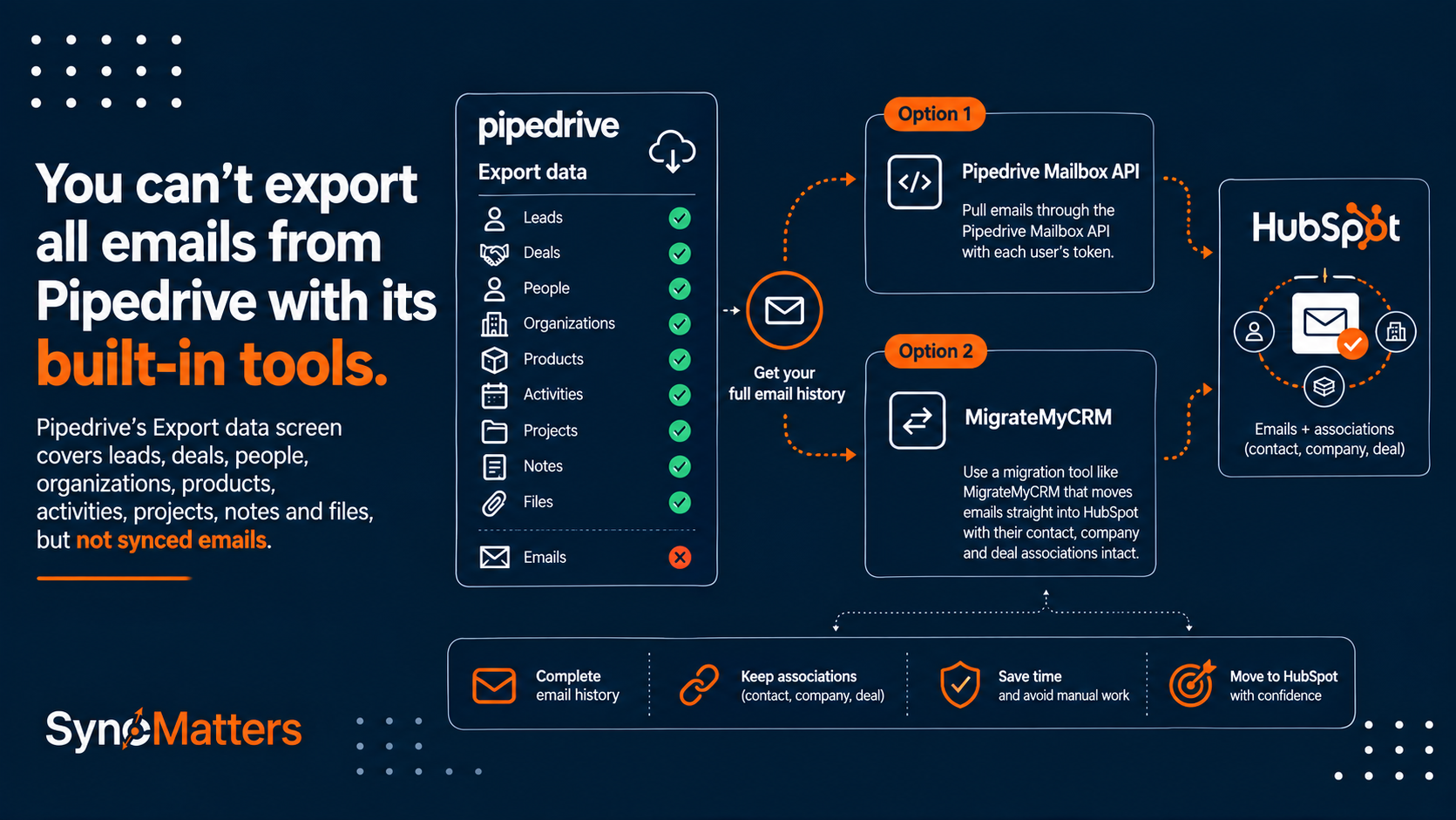
SyncMatters handles both parts: MigrateMyCRM moves data between 50+ CRMs, and SyncMatters integrations connect HubSpot to Business Central afterward. One team owning both avoids the classic gap where migrated records don't match the integration's keys.
How to choose the right Business Central integration
Answer these five questions. If you answer "yes" to two or more, a basic connector or no-code tool will likely cost you more in cleanup than it saves.
- Do you need more than customers and contacts to sync, such as items, orders or invoices?
- Must data flow in both directions with clear rules about which system wins?
- Do you use custom fields, multiple BC companies, or non-default posting groups and dimensions?
- Would a silent sync failure affect orders, billing or commissions?
- Is there nobody in-house who owns integrations as part of their job?
For BC partners and resellers: a managed HubSpot integration lets you offer CRM connectivity to your BC clients without building and supporting it yourself. SyncMatters works with partners on these projects.
Glossary
|
Term |
Meaning |
|---|---|
|
Business Central (BC) |
Microsoft Dynamics 365 Business Central, an ERP for small and mid-size businesses covering finance, sales, purchasing, inventory and operations |
|
ERP |
Enterprise resource planning: the system that runs orders, inventory, invoicing and accounting |
|
iPaaS |
Integration platform as a service: cloud middleware that connects applications through their APIs |
|
Two-way (bidirectional) sync |
Changes in either system update the other, according to rules about which system wins |
|
Source of truth |
The system whose value is correct for a given field when the two disagree |
|
Matching key |
A unique value, such as a BC customer number, stored in both systems to pair records |
|
AL extension |
An app written in AL, Business Central's development language, installed inside a BC tenant |
|
Posted document |
A finalized BC invoice, credit memo or shipment that can no longer be edited |
|
Posting groups |
BC settings that decide which general ledger accounts a customer's or item's transactions hit |
|
Dimensions |
BC tags (such as department or region) used for financial analysis |
|
Data Sync |
HubSpot's built-in sync engine used by its native app integrations |
|
CRM card |
A panel on a HubSpot record that shows data from an external system |
|
HTTP 429 |
The error an API returns when a client sends too many requests |
FAQ
Does HubSpot integrate with Microsoft Dynamics 365 Business Central? Yes. HubSpot offers a native Business Central app in its marketplace that focuses on syncing customer data. For orders, items, invoices or custom objects, companies use a BC extension, a no-code tool, or a managed iPaaS such as SyncMatters.
Can HubSpot deals create sales orders in Business Central? Yes, with a connector or managed integration. A common setup creates a BC customer and sales order when a deal reaches Closed Won, using deal line items mapped to BC item numbers.
Can I see Business Central invoices in HubSpot? Yes. Posted invoices and payment status can sync from BC into HubSpot as a custom object, timeline events or a custom CRM card. This flow is one-way because posted documents are read-only in BC.
Is Zapier good enough for a HubSpot Business Central integration? For simple one-way triggers, yes. For two-way sync of customers, products and orders, Zapier lacks conflict rules and central error handling, so duplicates and silent failures are common.
How much does a HubSpot Business Central integration cost? The native app is included with HubSpot. No-code tools charge per task, and packaged connectors charge a license plus setup. SyncMatters managed integrations start at $300/month.
How long does it take to integrate HubSpot with Business Central? A basic customer sync can run in a day. A full two-way integration with orders, invoices and custom fields typically takes weeks, including discovery, mapping, testing and user acceptance.
Does the integration work with Business Central on-premises? It depends on the solution. Many connectors support BC online only, so confirm on-premises support with the vendor before you commit.
Which Business Central plan do I need for HubSpot's native app? HubSpot's app requires Business Central Essentials, Premium or Team Members, and it works with all HubSpot plans.
Does a HubSpot Business Central integration sync in real time? It depends on the method. Change-based sync using webhooks can run in near real time; many integrations sync orders in near real time and invoices or items on a schedule.
Can I sync custom fields and custom objects? Most connectors support custom field mapping. Custom objects on either side usually need a configurable connector or a managed integration.
Can I connect several Business Central companies to one HubSpot account? Yes, but each BC company is a separate data set, so you need rules that route each HubSpot record to the right company, for example by business unit or region.
Can HubSpot tickets connect to Business Central? Yes, with a custom integration. Common setups show purchase and service history on tickets, or create BC service documents from HubSpot tickets.
Do I need a developer to integrate HubSpot and Business Central? Not for the native app or a managed integration. Custom API builds and complex no-code flows usually need technical skills to build and maintain.
What are the Business Central API limits? Business Central online allows 6,000 web service requests per user in a 5-minute sliding window, with 5 processed concurrently and 95 queued. Exceeding them returns HTTP 429.
What happens to the integration when Business Central is updated? BC ships two major releases a year. Integrations built on standard APIs are usually unaffected, but every release should be tested in a sandbox first.
Connect HubSpot and Business Central without the maintenance
Tell us which objects you need to sync and how your sales-to-invoice process works. We'll get back to you with a tailored estimate.
Get a free integration estimate
Sources
- HubSpot Marketplace: Microsoft Business Central app
- Microsoft AppSource: HubSpot for Microsoft Business Central
- Microsoft Learn: Business Central integration overview
- Microsoft Learn: Business Central service scalability
- Microsoft Learn: Operational limits for Business Central online
- n8n: HubSpot and Business Central API integration
- SyncMatters integration pricing



.svg)