The short answer
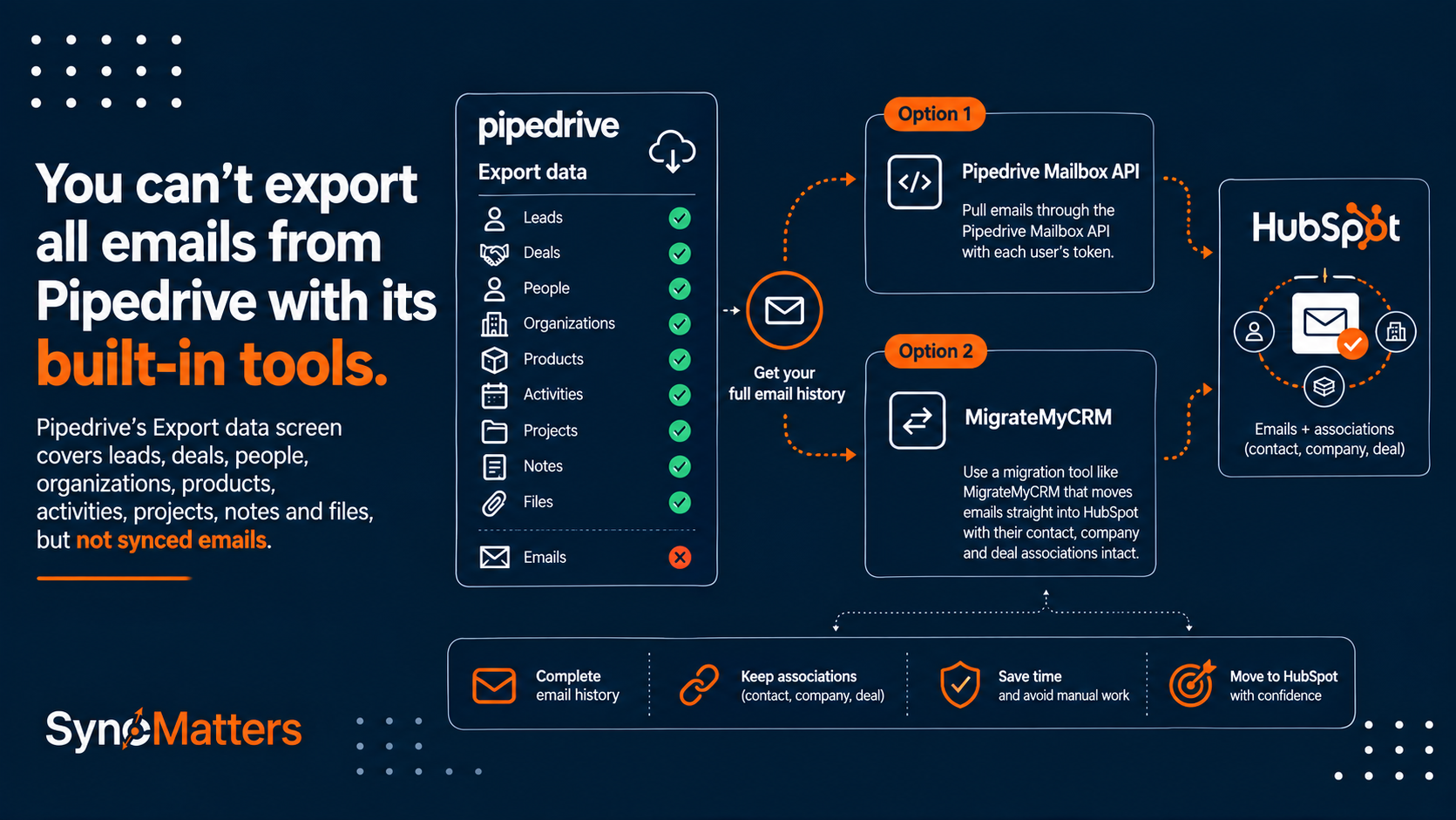
You can't export all emails from Pipedrive with its built-in tools. Pipedrive's Export data screen covers leads, deals, people, organizations, products, activities, projects, notes and files, but not synced emails. To get your full email history out, pull it through the Pipedrive Mailbox API with each user's token, or use a migration tool like MigrateMyCRM that moves emails straight into HubSpot with their contact, company and deal associations intact.
Most teams find this out mid-migration. The CSVs look complete, the import into HubSpot runs clean, and then sales reps open a contact and see years of conversation history missing. This guide explains why that happens, the three methods that actually work, and how to choose between them.
What Pipedrive's export includes (and what it leaves out)
Pipedrive's own export documentation (updated September 3, 2026) lists nine exportable data types. Synced emails are not one of them.
|
Data |
In native export? |
Notes |
|---|---|---|
|
Leads, deals, people, organizations |
Yes |
Includes custom fields and linked records |
|
Products, projects |
Yes |
Projects need Premium or the Projects add-on |
|
Activities (including "Email" activity type) |
Yes |
These are scheduled tasks, not the emails themselves |
|
Notes |
Yes |
HTML or plain text |
|
Files |
Partly |
Exported as download links, not raw files; Google Drive files excluded |
|
Synced emails (sent and received) |
No |
Only reachable through the Mailbox API |
|
Email attachments |
No |
Tied to email messages, so they're missing too |
Two traps catch almost everyone:
- Email activities are not emails. An "Email" activity in Pipedrive is a to-do item ("send follow-up Tuesday"). The actual messages synced from Gmail or Outlook live in the Mailbox, a separate object. An activities export gives you the reminders, not the conversations.
- HubSpot Smart Transfer has the same gap. HubSpot's Smart Transfer documentation states it syncs Pipedrive email activities but not logged emails, and syncing activities requires a Data Hub subscription.
Also note that exports are admin-only, limited to what your visibility group can see, and each generated file expires after 28 days.
Method 1: Native Pipedrive options (partial workaround)
The native route won't give you emails, but you should still run it: it captures the parent records your emails need to attach to later.
- Open the account menu, go to Tools and apps > Export data.
- Export People, Organizations, Deals, Activities, Notes and Files one type at a time, as CSV or Excel.
- Download each file from Generated exports before the 28-day window closes.
- Keep the Pipedrive record IDs in every file. You'll need them to match emails to the right contact, company and deal.
The only way to see email content natively is to open each contact or deal and read the email tab, or forward threads manually. That's workable for a handful of key accounts, not for a full history.
Best for: small accounts where email history doesn't matter, or as the first step before an API or tool-based email transfer.
Method 2: Export emails with the Pipedrive Mailbox API
The Pipedrive API is the only native path to raw email data. Emails live under the Mailbox object, and pulling them is a two-step loop: list threads, then fetch the messages inside each thread.
|
Endpoint |
What it returns |
|---|---|
|
|
Threads in a folder (inbox, drafts, sent, archive), paginated with |
|
|
Every message inside one thread |
|
|
One message, including body when requested |
|
|
Emails linked to a deal (same pattern for persons and organizations) |
What makes this harder than it looks:
- One token per user. Mailboxes are personal. An admin token won't return a colleague's inbox, so you need every sales rep's API token to capture the full team history.
- Rate limits. Thousands of threads mean thousands of calls. Exceed the limit and Pipedrive returns 429 errors, so your script needs batching and retry logic.
- Associations are separate. The thread list doesn't tell you which HubSpot contact or deal an email belongs to. You have to map Pipedrive person, org and deal IDs yourself.
- Attachments are extra calls. Files linked to messages must be downloaded and re-uploaded individually.
- Output is JSON, not a CRM record. You still need to transform it into HubSpot email engagements via the HubSpot API.
Best for: teams with a developer, a one-off archive requirement, or a target system no migration tool supports. See the Pipedrive API reference for full parameters.
Method 3: Migrate Pipedrive emails to HubSpot automatically with MigrateMyCRM
If you're exporting emails because you're moving to HubSpot, you don't need an export file at all. MigrateMyCRM by SyncMatters reads synced emails and their attachments through the Pipedrive API and writes them into HubSpot as email engagements on the right timeline.
How it works:
- Connect both systems. Add Pipedrive with each user's API token, so every rep's mailbox is included, and connect your HubSpot portal.
- Choose a strategy per object. Set Emails and Attachments to Migration. If contacts, companies and deals are already in HubSpot, set them to Matching only. Matched records aren't charged.
- Set matching rules. Link emails to existing HubSpot records by Pipedrive ID or by email address and company name if records came in via CSV.
- Run a free sample migration. A subset of emails lands in HubSpot so you can check associations before committing.
- Run the full migration, then a delta. Refresh matches if days have passed, and run a delta migration to catch emails synced during cutover.
This also fixes the most common post-import problem: records already in HubSpot via Smart Transfer or CSV, but no email history. MigrateMyCRM's emails-only guide covers exactly that partial migration.
Real example: Partly tried native import and other tools, then found none of them moved activities, emails or files. MigrateMyCRM migrated all three and attached them to previously imported records. Read the Partly case study.
Best for: any team moving from Pipedrive to HubSpot that needs full email history, attachments and associations without writing code. SyncMatters is a HubSpot Elite Solutions Partner, ISO 27001 certified and GDPR compliant, with 500+ Pipedrive migrations completed.
Which method should you use?
For a move to HubSpot, MigrateMyCRM is the only option here that delivers complete email history with associations and no code.
|
Criteria |
Native export |
HubSpot Smart Transfer |
Pipedrive Mailbox API |
MigrateMyCRM |
|---|---|---|---|---|
|
Synced emails (full body) |
No |
No (email activities only) |
Yes |
Yes |
|
Email attachments |
No |
No |
Yes, extra calls |
Yes |
|
All users' mailboxes |
No |
No |
Yes, one token per user |
Yes, one token per user |
|
Associations in HubSpot |
Manual |
Contacts, companies, deals only |
Build yourself |
Automatic via matching |
|
Works with records already imported |
n/a |
n/a |
Custom logic |
Yes, matching at no charge |
|
Coding required |
No |
No |
Yes |
No |
|
Test before full run |
No |
No |
Your own test |
Free sample migration |
Checklist before you move Pipedrive emails
Run these seven steps before any email transfer, whichever method you pick.
- Confirm every rep's email sync is still connected. Disconnected mailboxes stop syncing, so the history ends at the disconnect date.
- Collect an API token from each Pipedrive user with emails you need, including departed users, before their seats are removed.
- Decide which emails to keep. Filter by date or by linked deal to avoid migrating newsletters and internal threads.
- Check private vs shared emails. Emails marked private in Pipedrive may need owner consent before they're moved into a shared CRM.
- Create HubSpot users first, so migrated emails keep the right owner.
- Keep Pipedrive record IDs in HubSpot as a custom property for reliable matching.
- Freeze Pipedrive during cutover, then run a delta migration for anything synced after the full run.
Frequently asked questions
Can I export all emails from Pipedrive to CSV?
No. Pipedrive's Export data tool covers leads, deals, people, organizations, products, activities, projects, notes and files, but not synced emails. To get email content out, you need the Pipedrive Mailbox API or a migration tool such as MigrateMyCRM.
Why are my emails missing after importing Pipedrive data into HubSpot?
CSV exports don't contain synced emails, and HubSpot Smart Transfer only moves Pipedrive email activities, not logged emails. Your contacts, companies and deals arrive, but the conversation history stays in Pipedrive until you migrate it separately.
What is the difference between Pipedrive email activities and emails?
An email activity is a scheduled task, such as a reminder to send a follow-up. Emails are the actual messages synced from Gmail, Outlook or Smart Email BCC and stored in the Pipedrive Mailbox. Activity exports include only the tasks.
Do I need every user's API token to export Pipedrive emails?
Yes. Pipedrive mailboxes are tied to individual users, so each user's API token is required to capture their emails and attachments. Collect tokens from departing users before their accounts are removed.
Can I migrate only emails if my records are already in HubSpot?
Yes. MigrateMyCRM can match existing HubSpot contacts, companies and deals without re-importing them, then migrate only emails and attachments onto those records. Matched records are not charged.
Are email attachments included when migrating from Pipedrive to HubSpot?
With MigrateMyCRM, yes. Attachments are migrated with their emails and associated with the same HubSpot records. Pipedrive's native file export only provides download links, not the files themselves.
Move your full Pipedrive email history to HubSpot
Don't leave years of customer conversations behind in Pipedrive. MigrateMyCRM migrates emails, attachments, notes and activities to HubSpot with every association intact, and you can test it with a free sample migration first.
Start your free sample migration →
Prefer expert help? Our migration specialists can run a guided migration for you. HubSpot Elite Solutions Partner · ISO 27001 · GDPR compliant.
Sources
- Exporting data from Pipedrive, Pipedrive Knowledge Base, updated September 3, 2026
- Supported apps for HubSpot Smart Transfer, HubSpot Knowledge Base, updated August 21, 2026
- Transfer data using HubSpot Smart Transfer, HubSpot Knowledge Base, updated September 11, 2026
- Marketplace scopes and permissions (Mailbox endpoints), Pipedrive Developers
- How do I migrate just my emails and attachments from Pipedrive to HubSpot?, MigrateMyCRM Help Center
- Partly case study, MigrateMyCRM
- Pipedrive to HubSpot migration, SyncMatters


.svg)